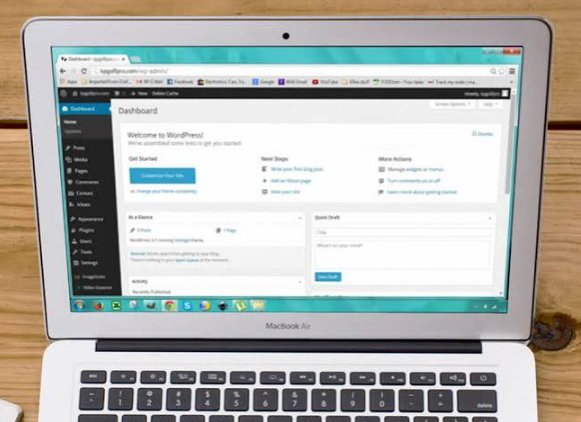
How to Secure Your WordPress Admin Dashboard Against Unauthorized Access

Lock down your WordPress admin first: use strong logins, turn on two-factor authentication, limit login attempts, and remove users who do not need access. WordPress is a huge target, and Wordfence reported blocking more than 100 billion credential stuffing attacks in 2023.
TLDR: Secure your admin area by using 2FA, strong passwords, login limits, updates, and fewer admin accounts. For example, if your site has 5 users and 3 are admins, cut that down to 1 admin and 4 lower-level accounts. That alone can reduce risky access points by 66%. Add alerts, backups, and a firewall so you know fast when something weird happens.
Start with the login page
Your WordPress login page is the front door. Do not leave it wide open with a welcome mat that says admin123.
Hackers love easy targets. They run bots that try thousands of username and password combos. It is boring. It is rude. It works way too often.
Do these first:
- Use a strong password. Aim for at least 16 characters.
- Do not use “admin” as a username. That saves attackers one guess.
- Use a password manager. Let it create the weird password soup.
- Never reuse passwords. One leaked shop account should not unlock your website.
A good password looks like this:
River!Cactus!91!Purple!Robot
It is long. It is odd. It is easier to remember than a pile of symbols.
See also: Real-Life Applications of Artificial Intelligence
Turn on two-factor authentication
Two-factor authentication, or 2FA, adds a second step. You enter your password. Then you enter a code from an app. Simple.
This means a stolen password is not enough. The attacker also needs your phone or security key. That is a much higher wall.
Use an app like Google Authenticator, Authy, 1Password, or Bitwarden. Avoid SMS codes if you can. App codes are usually safer.
Honestly, it feels ridiculous that some sites still skip 2FA. It takes about 60 seconds to set up. It can stop a total mess.
Good security plugins often include 2FA. If yours does not, add a trusted 2FA plugin. Test it with one user first. Then roll it out to everyone.
Limit login attempts
By default, WordPress may allow many login tries. Bots love that. They can keep knocking until something cracks.
Install a plugin that limits failed login attempts. A common setup is:
- Lock the user out after 5 failed tries.
- Block the IP for 15 minutes.
- Send an email after repeated failures.
This does not stop every attack. It does slow down the noisy ones. That matters.
It also saves server power. Fewer fake login attempts means your site can spend more energy serving real visitors.
Change your login URL, but do not trust it too much
You can move your login page from /wp-login.php to something less obvious. For example:
/secret-door
This can reduce junk traffic. It can help. But it is not magic.
Think of it like hiding your house key under a gnome. Better than plain sight. Still not a bank vault.
Use this as a bonus step. Not your full plan.
Give users the right roles
Not everyone needs admin access. Please do not make your cousin, writer, intern, and SEO helper all admins. That is how chaos gets a username.
WordPress has built-in roles:
- Administrator: Can do almost everything.
- Editor: Can manage posts and pages.
- Author: Can publish their own posts.
- Contributor: Can write drafts.
- Subscriber: Can manage only their profile.
Use the lowest role that still lets the person do the job. This is called least privilege. Fancy name. Simple idea.
Check users once a month. Remove old accounts. Downgrade roles. If someone left the project six months ago, they should not still hold keys.
Keep WordPress, themes, and plugins updated
Old software is risky. Many hacks happen because a known bug was never patched.
Update these often:
- WordPress core
- Plugins
- Themes
- PHP version
Delete plugins you do not use. Do not just deactivate them. Delete them.
The catch is that updates can break things. Annoying? Yes. Still worth it. Use a staging site if your host offers one. Test major updates there first. Then update the live site.
Also avoid abandoned plugins. If a plugin has not been updated in years, think twice. A dusty plugin can become a sneaky back door.
Add a web application firewall
A firewall helps block bad traffic before it reaches your site. It can stop common attacks, fake bots, and suspicious requests.
You can use a firewall from a security plugin or a service like Cloudflare. Some hosts also include one.
A firewall is not a superhero cape. But it is a tough bouncer at the door. That helps.
Look for features like:
- Login attack blocking
- Malware scanning
- IP blocking
- Country blocking, if needed
- Email alerts
Protect the wp-config.php file
Your wp-config.php file holds database details and secret keys. Treat it like a treasure map.
You can move it one folder above the public web root on many hosting setups. You can also block direct access through server rules.
If that sounds scary, ask your host. A good host should help without making you feel like you are defusing a cartoon bomb.
Also update your WordPress security salts. These help protect login cookies. You can generate fresh ones from the official WordPress salt key tool.
Disable file editing in the dashboard
WordPress lets admins edit theme and plugin files from the dashboard. That sounds handy. It is also risky.
If an attacker gets admin access, they can use the editor to add bad code fast.
Stop that by adding this line to your wp-config.php file:
define(‘DISALLOW_FILE_EDIT’, true);
Now file edits must happen through safer methods, like SFTP or your hosting file manager.
Use HTTPS everywhere
HTTPS encrypts data between your visitor and your website. That includes login details.
Most hosts offer free SSL certificates. Many use Let’s Encrypt. Turn it on. Then force HTTPS for your whole site.
If your admin login loads over plain HTTP, stop and fix that first. Passwords should not travel through the internet like postcards.
Set up backups before you need them
Backups are not glamorous. They are boring. Boring saves websites.
Use automatic backups. Store them away from your server. Daily backups are good for busy sites. Weekly backups may work for small sites.
Make sure you can restore them. A backup you never tested is just a hopeful file.
Keep at least:
- 7 daily backups
- 4 weekly backups
- 1 monthly backup
Watch admin activity
Use an activity log plugin. It records who logged in, what changed, and when it happened.
This helps you spot odd behavior. For example, if a user edits a plugin at 3:12 a.m. from another country, you want to know.
Set alerts for:
- New admin users
- Plugin installations
- Theme changes
- Many failed logins
- Password resets
Use secure hosting
Your site is only as safe as the server under it. Cheap hosting can be fine. Bad hosting is painful.
Look for a host that offers:
- Automatic backups
- Malware scanning
- Server firewalls
- Free SSL
- Staging sites
- Fast support
Expect to waste time on hosts that treat security as an upgrade. Your admin dashboard should not depend on luck and a support ticket queue.
Quick security checklist
- Use a unique admin username.
- Use long passwords.
- Turn on 2FA.
- Limit failed logins.
- Remove unused users.
- Update everything.
- Delete old plugins and themes.
- Add a firewall.
- Disable file editing.
- Use HTTPS.
- Set up off-site backups.
- Review activity logs.
Your WordPress admin dashboard does not need to be a fortress with lasers. It just needs smart locks, fewer keys, and a loud alarm. Start with 2FA and login limits today. Then clean up users, updates, and backups. Future you will be very grateful.